Tracking time in real time from the dashboard
Timether lets you track your work as it happens using the timer on your main dashboard. This is useful when you want to start working now and save the exact time later as a time entry.
The dashboard timer is designed to be quick and simple: choose what you are working on, start the timer, pause when needed, and save it once the work is done.
Starting the timer
To start tracking time:
-
Go to your main dashboard.
-
Select the project you are working on.
-
Add any task or description if needed.
-
Click Start ▶.
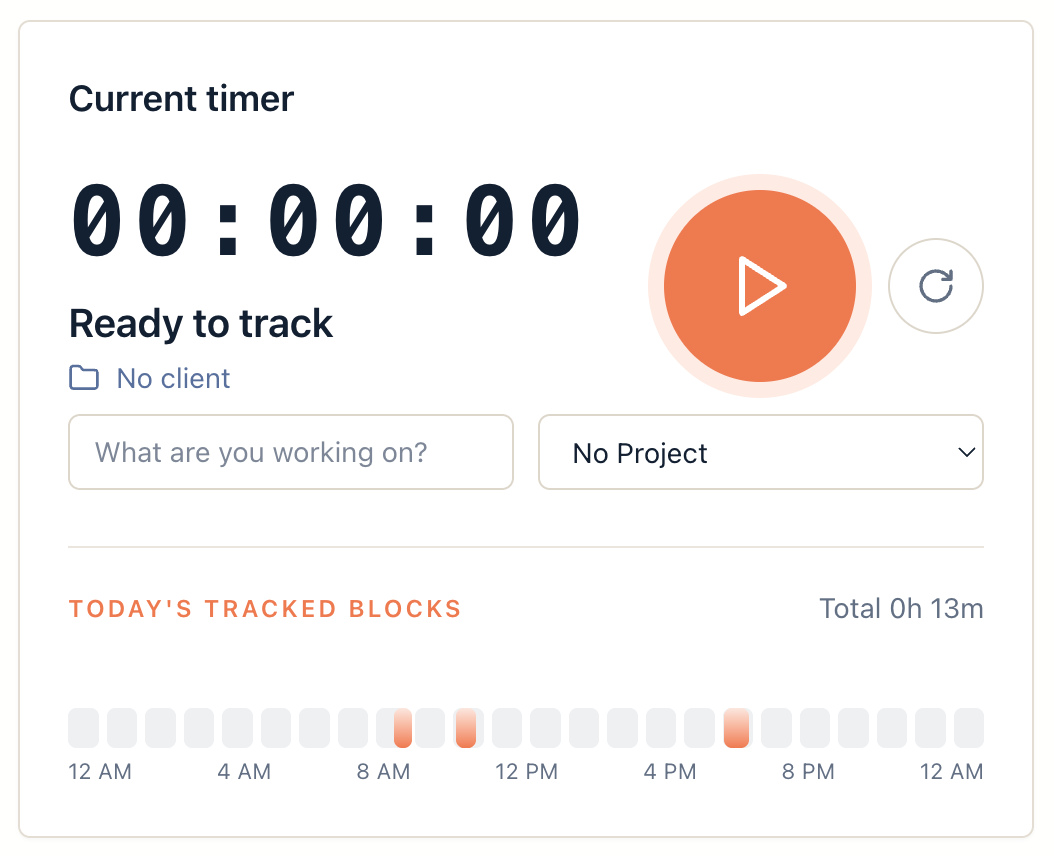
Once started, the timer will begin counting your active work time.
Your timer state is saved automatically, so it stays linked to your user account and workspace. This means the active timer can continue from where it left off within the same workspace, even if you refresh the page or come back later.
Pausing the timer
If you need to take a break, click Pause.
Pausing stops the timer temporarily without clearing the tracked time. This is useful when you are stepping away, switching context briefly, or taking a break that should not be counted as work time.
Resuming the timer
When you are ready to continue, click Resume.
The timer will continue from the time already tracked instead of starting again from zero.
Saving the timer as a time entry
When you finish the work, click Save.
Saving commits the active timer into a permanent time entry. Once saved, the tracked time will be added to your timesheet or project records.
When you save a timer entry, Timether uses the selected project to automatically apply the correct billing details.
How billable status and hourly rate are applied
When you select a project for the timer, Timether automatically uses that project’s billing settings for the new time entry.
If the project is billable, the saved time entry will also be marked as billable by default.
Timether also applies the project’s hourly rate automatically. The hourly rate is stored internally in cents to keep billing calculations accurate. For example, an hourly rate is saved as an integer value in cents rather than as a rounded decimal amount.
This helps avoid calculation issues and keeps your billing records consistent.
Resetting the active timer
If you started a timer by mistake or no longer want to keep the tracked time, click Reset.
Resetting clears the active timer without saving it.
Use Reset only when you want to discard the current timer. Once reset, the tracked time is removed from the active timer and will not be added as a time entry.
Timer states are saved per user and workspace
Your active timer is saved separately for each user and workspace.
This means your timer belongs only to your account inside the current workspace. Other users will not see or control your active timer, and timers from one workspace will not mix with another workspace.
This makes it easier to work across different teams, clients, or businesses without accidentally tracking time in the wrong place.